Switch Scanning
Switch Scanning is a method for people with limited mobility to interact with computers, tablets, and phones using access switches. When scanning is turned on, the device scans the page for clickable icons, buttons, links, and typable areas. Users simulate tapping and clicking by pressing on the switches with their hand, arm, head, or feet.
To set up switch scanning, users will need to use a switch interface so the electronic device can read a switch as an input. The Swifty and Beam are commonly used for switch scanning by disability professionals. If you want to try an open source switch interface, you can request a local maker to build the FAIO and ATMaker’s KeySwitch by going to the device page and clicking request at the top. Both the FAIO and KeySwitch allow greater customization but requires some technical knowledge from the user.
How To Setup Your Device and Scanning Options
Requires Android 5.0 or higher. For setting up switch scanning on an iOS device, see this tutorial.
Scanning Options
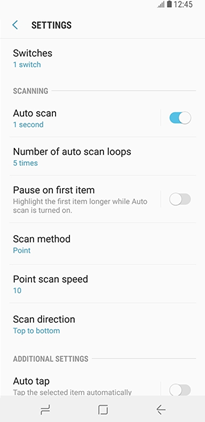
While a switch can be used to begin scanning, the best option is to enable auto scan.
You can choose between 2 types of scanning: row and point scan.
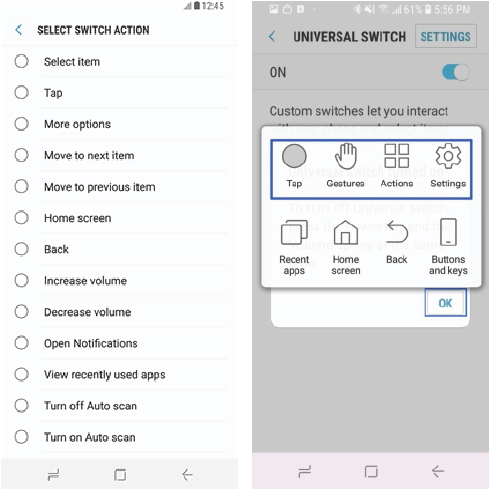
- Row scan groups items that together by region first and then the row. Assuming that your switch has the select function assigned to it, pressing the switch once will open the context menu, press it again to select tap. It will enter that region. It will then scan items in that grouping. Repeat the sequence once you are on the app you want.
- Point scan begins with a horizontal scan, followed by a vertical scan to pin-point on a specific item. It is akin to getting an item in the crosshairs.
How to add a switch
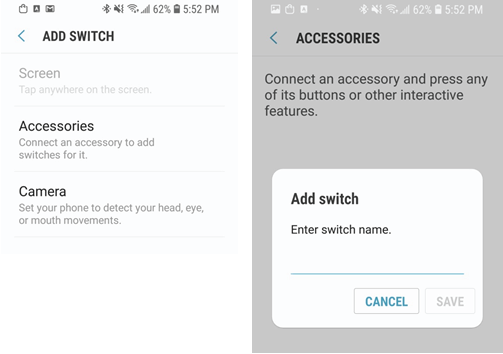
Wireless: For a wireless switch, you must first do the Bluetooth pairing in settings. Note: some wireless switches can also act as hubs, meaning multiple switches can be plugged into this 1 switch.
Wired: For a wired switch, it’s usually a mono cable. You’ll need a 3.5 mm headphone jack adapter. The phone then identifies it as an accessory switch.
Note that you cannot run features such as Assistant menu, One handed mode, Voice Assistant (talkback), Zoom at the same time. you will have to turn it off.
Go to settings -> accessibility -> dexterity and interaction -> universal switch
Assigning Actions to the Switch
For multiple button switches, each button acts independently. In the settings, you can assign independent functions to each button.
If you have a 2 button switch, you can assign a tap to the other button.
If you only have a 1 button switch, assign the select function to it. This opens up a menu of actions such as tap, swipe gestures, home button, other physical buttons.