
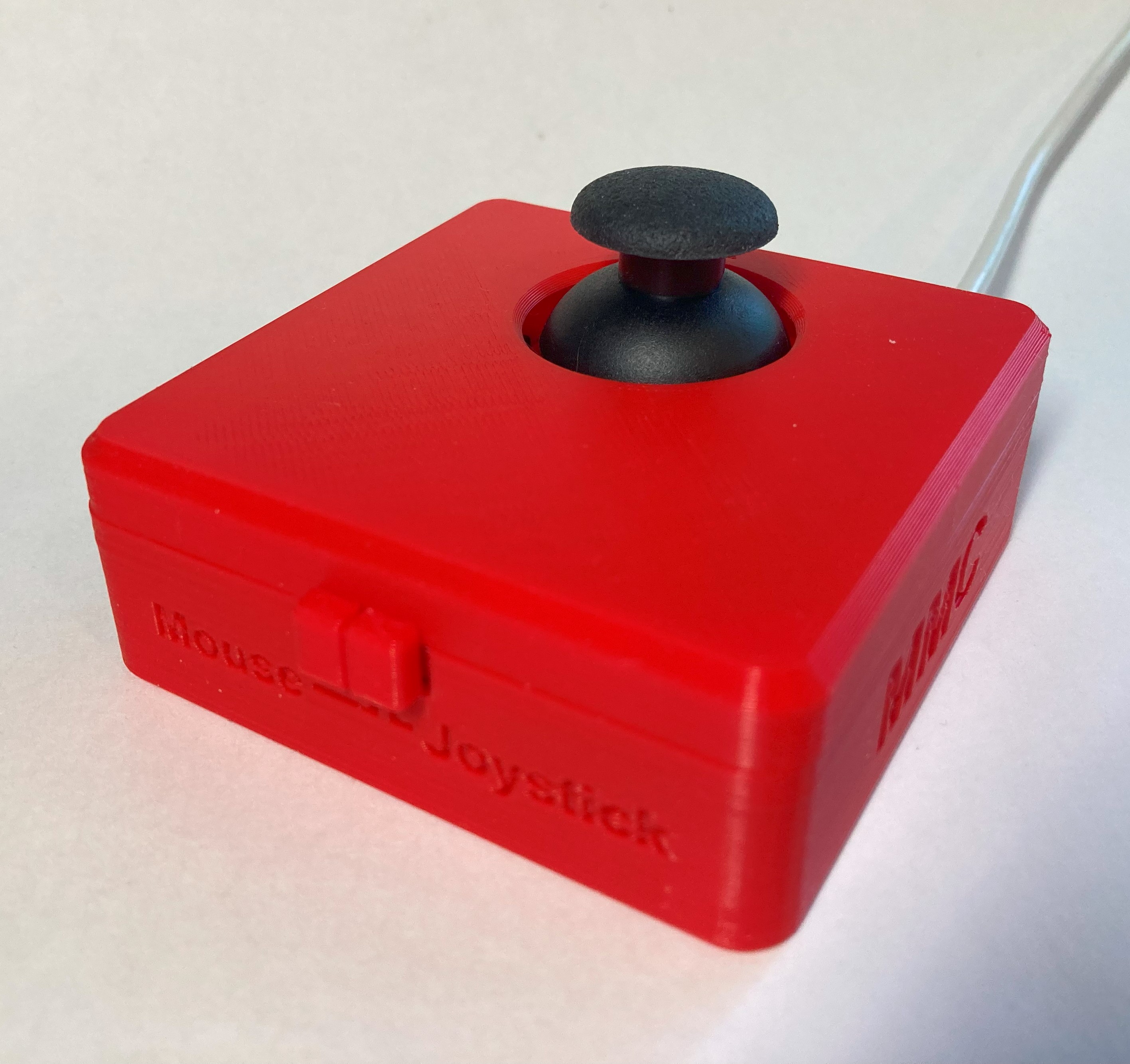
Cedar Mini USB Joystick
A USB joystick with a small range of motion and additional switch ports that has a switch to toggle between mouse and gamepad output.
 Electronics
 Mechanics
 3D Printing
 0
0 8
8 0
0 200
200Device Information
Overview
The Cedar is a small USB joystick that can act as a HID Mouse or an HID Gamepad. It connects directly to a compatible device via the integrated USB cable. The mode can be changed by sliding a switch on the enclosure. The joystick can be pressed down as an input, and up to 3 assistive switches can be connected using the 3.5 mm input jacks.
The PS2-style game controller thumbstick joystick has a range of motion of ±30° and requires approximately 75 grams-force to fully deflect. A range of toppers are available for this joystick, including a set of toppers created by AbleGamers Charity.
In Joystick mode, it is compatible with the Xbox Adaptive Controller.
The Cedar Mini USB Joystick is the USB version of the Spruce Mini Joystick. The Spruce Mini Joystick uses the same thumbstick component, but instead of USB output it has a TRRS cable for the joystick and a mono cable for the integrated joystick button.
Compatibility
Mouse mode – compatible with PC, most Android phones and tablets, and Apple phones and tablets with iOS13 and iPadOS.
Joystick mode – compatible with PC (direct or gaming with Steam), most Android phones and tablets, and Apple phones and tablets with iOS13 and iPadOS, and with Xbox Adaptive Controller (XAC). Through the XAC it is compatible with PC and Xbox directly or can be used with other gaming consoles with adapters.
How To Use
For full instructions, please refer to the User Guide.
Usage
Using the Joystick in Mouse Mode:
- Move the slide switch to the left for Mouse Mode, as indicated on the housing.
- Plug in assistive switches to the switch jacks. The default switch mapping is stated below.
- Plug the joystick into the device you wish to use it with.
- Orient the joystick so the arrow on top is facing away from the user and the cable is exiting the enclosure away from the user.
- Move the joystick to move the mouse, use the switches for the functions listed below.
Using the Joystick in Joystick Mode:
- Move the slide switch to the right for Joystick Mode, as indicated on the housing.
- If desired, plug in assistive switches to the switch jacks. The default switch mapping is stated below.
- Plug the joystick into the device you wish to use it with.
- Orient the joystick so the arrow on top is facing away from the user and the cable is exiting the enclosure away from the user.
- Move the joystick to move the mouse, use the switches for the functions listed above.
- Depending on what device you are using the joystick with, if you are using switches plugged into the jacks you will most likely want to remap them. This can be done in your system’s settings.
Disability Type Description
This device is intended for users with a small range of motion that need an external joystick for adaptive gaming or computer access.
Estimated Cost (CAD)
Maker Information
Skills Description
This is an advanced build requiring electronics, mechanics, 3D printing and using the Arduino IDE.
Print Time (hrs)
4
Assembly Time (hrs)
3
Tools Needed
Common Hand Tools;3D Printer;Soldering Iron
Build Instructions
This is an advanced build that requires routing and soldering wires using a 3D printed circuit board.
For full instructions, please refer to the Maker Guide available via the Project Link or Download Button.
Project Link
Please login or register to agree to the MMC Terms of Use to access the Project Link
License
Attribution
Designed by Neil Squire Society / Makers Making Change
Contributors:
- Josie Versloot
- Milad Hajihassan
- Emily Schwitz
- Tyler Fentie
- Jake McIvor
Reviews

There are no reviews for this device